Insight · Adoption
Viva Connections is now the SharePoint app. Here is how to move your intranet into Teams.
Every organization has an intranet that cost real money and gets opened twice a month. Staff live in Teams and Outlook, and a portal sitting in a separate browser tab loses that contest quietly, one week at a time. Microsoft's fix is an app that places the intranet directly in the Teams left rail, carrying your organization's name and icon, so the home page, news and search sit beside Chat and Calendar.
The app used to be called Viva Connections. Microsoft announced the rename in spring 2026 and finished rolling it out by mid year, and the Teams admin center still lists it as SharePoint (Previously Connections), so expect to meet both names during setup. Organizations that had already given the app a custom name and logo kept their branding through the change. Older guides send you looking for a separate Viva Connections wizard that no longer exists. Its replacement is the Manage home site screen, and knowing that up front saves the first hour of every deployment.
The work spans two admin centers and needs both the SharePoint Administrator and Teams Administrator roles, so line both up before you start. The screenshots below come from our development tenant, where the demonstration intranet is named The Hub.
The route is short: three settings on the SharePoint side, four in the Teams admin center, then two waiting periods and a verification pass. The work itself is quick; the calendar time comes from the waits.
In SharePoint
1. Check the home site
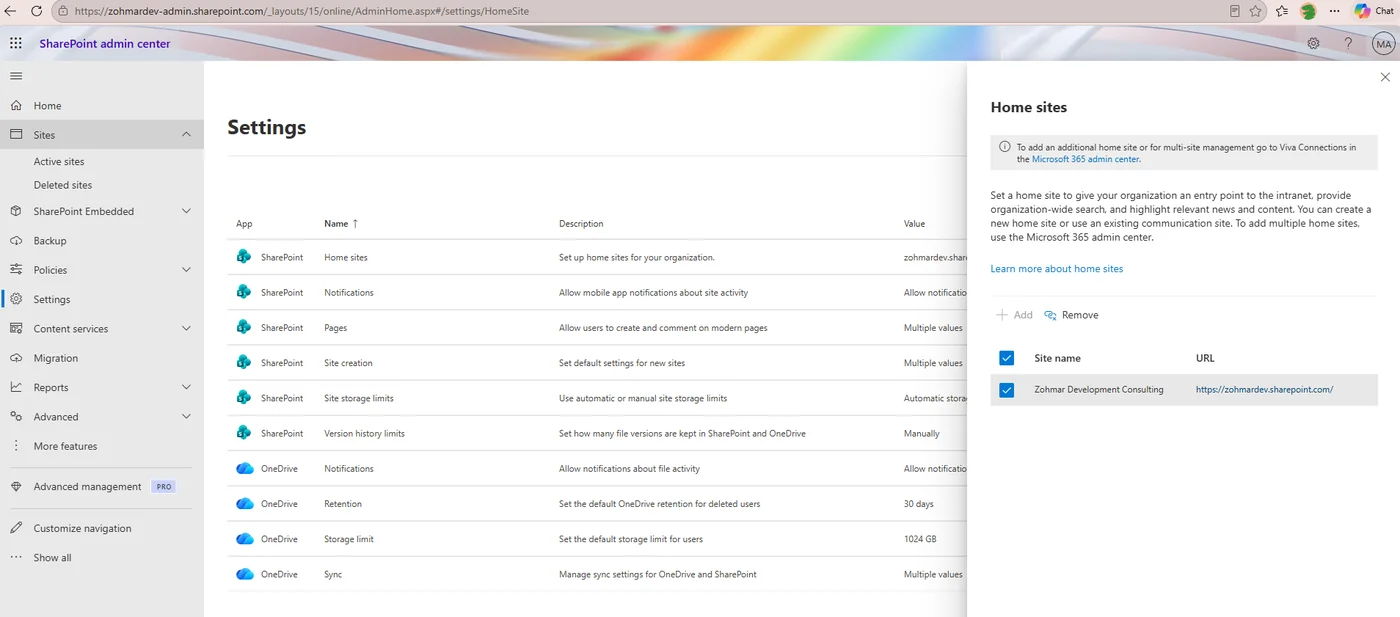
SharePoint admin center, Settings, Home sites. Confirm the site listed is the one people should land on. Every later step points at whatever site is named here, and if the wrong one is listed, or none is, stop and fix that before touching anything else.
2. Open Manage home site
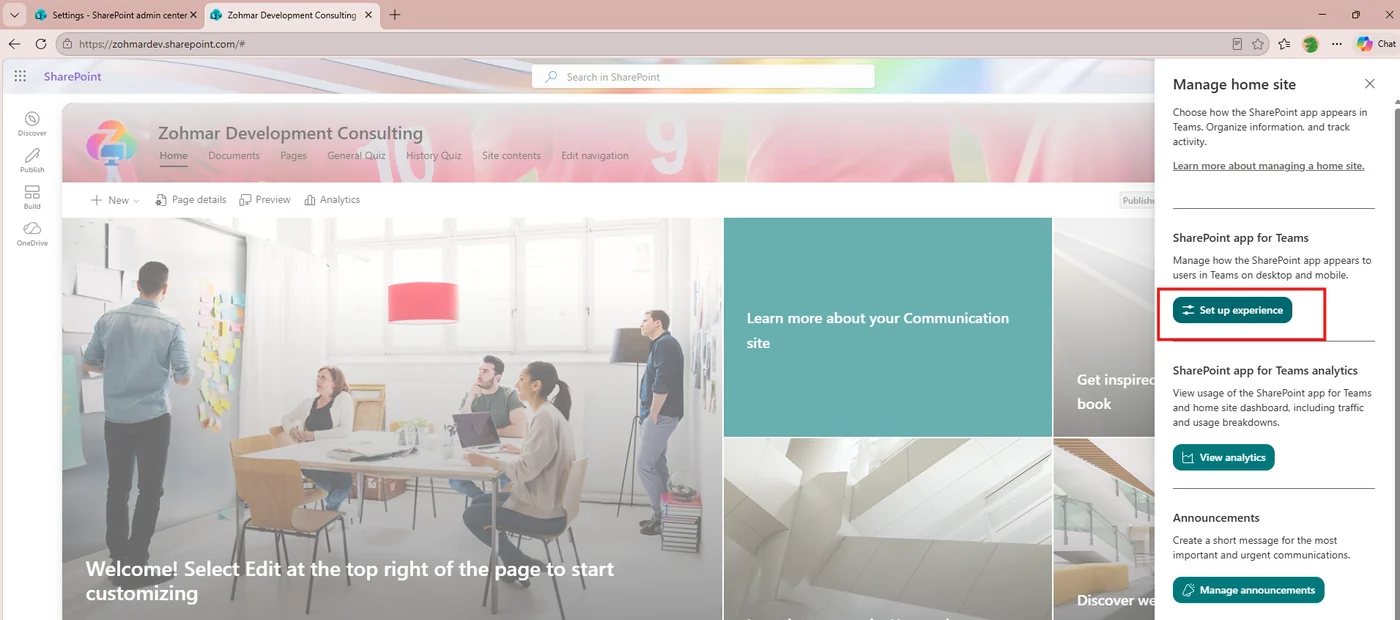
Go to the home site as an admin, open the gear menu top right, and choose Manage home site at the bottom of the SharePoint list. This is where you control how the app appears in Teams, and it is the screen that replaced the old wizard.
3. Pick the Custom layout
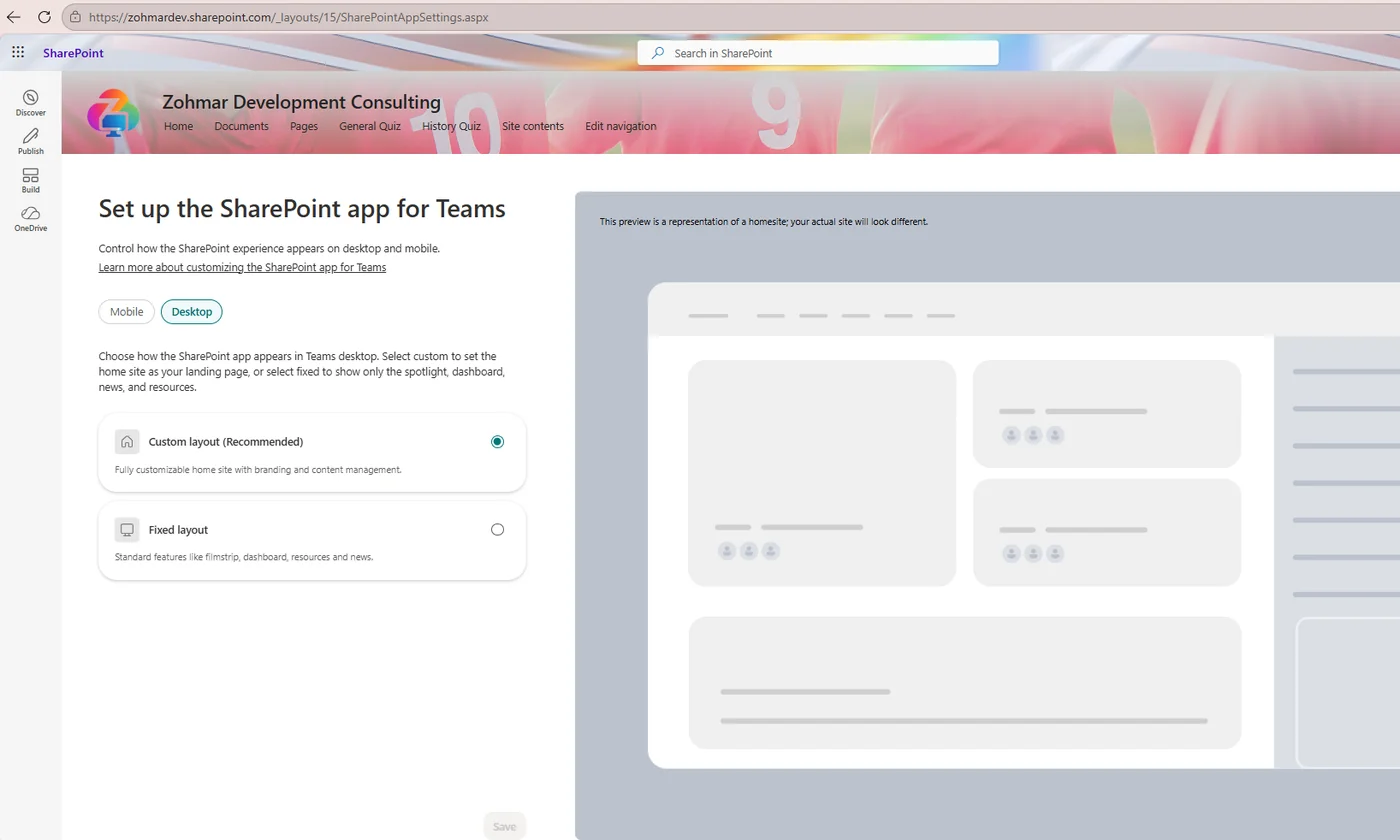
Open Set up the SharePoint app for Teams. Two layouts are offered and the choice matters. Custom opens the app straight onto your home page, so people see the intranet they already know. Fixed shows a stripped spotlight and dashboard view, and for a real intranet it disappoints. Pick Custom, which Microsoft also recommends, set the desktop layout, then the mobile tabs and their order, and save.
In the Teams admin center
4. Allow the app
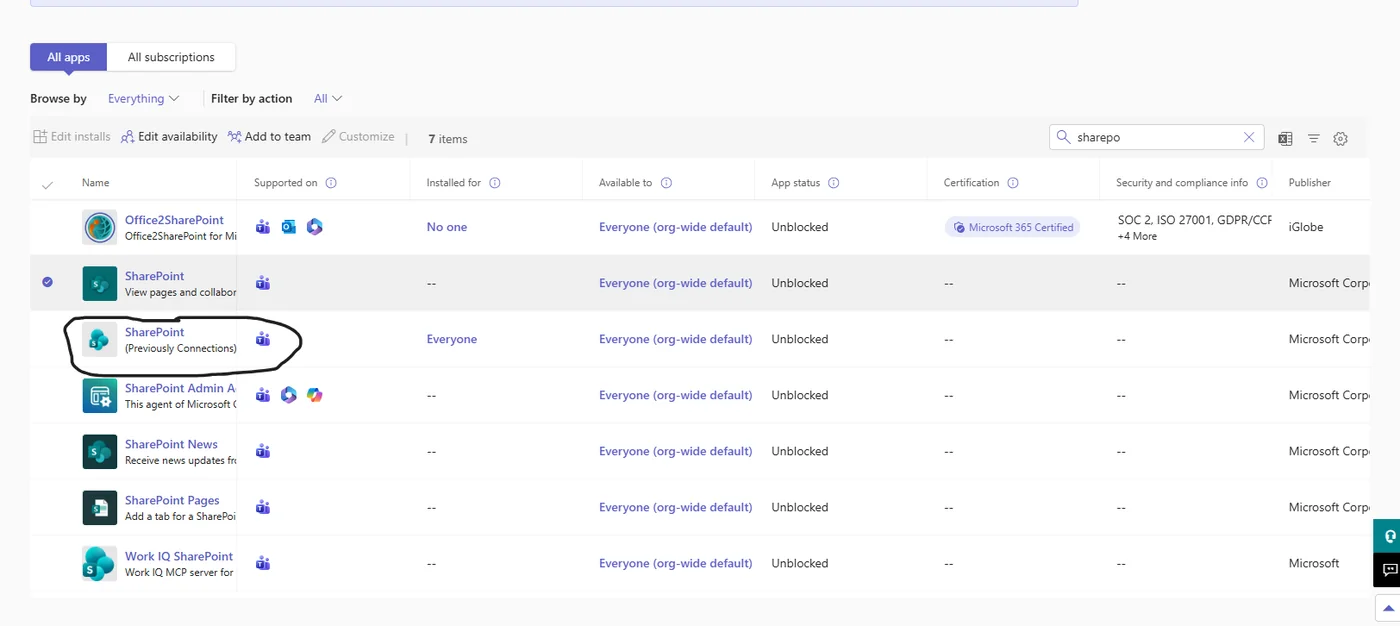
Under Teams apps, open Manage apps and search for SharePoint. It shows as SharePoint (Previously Connections). Set the status to Allowed, which lets staff find it in the app store while leaving the left rail untouched. Customize, which comes next, sits in the toolbar above the list.
5. Rename it
Select the app, choose Customize, and under App details set the short name to whatever your organization calls the intranet. Tidy the descriptions while you are there, since staff read those in the app store.
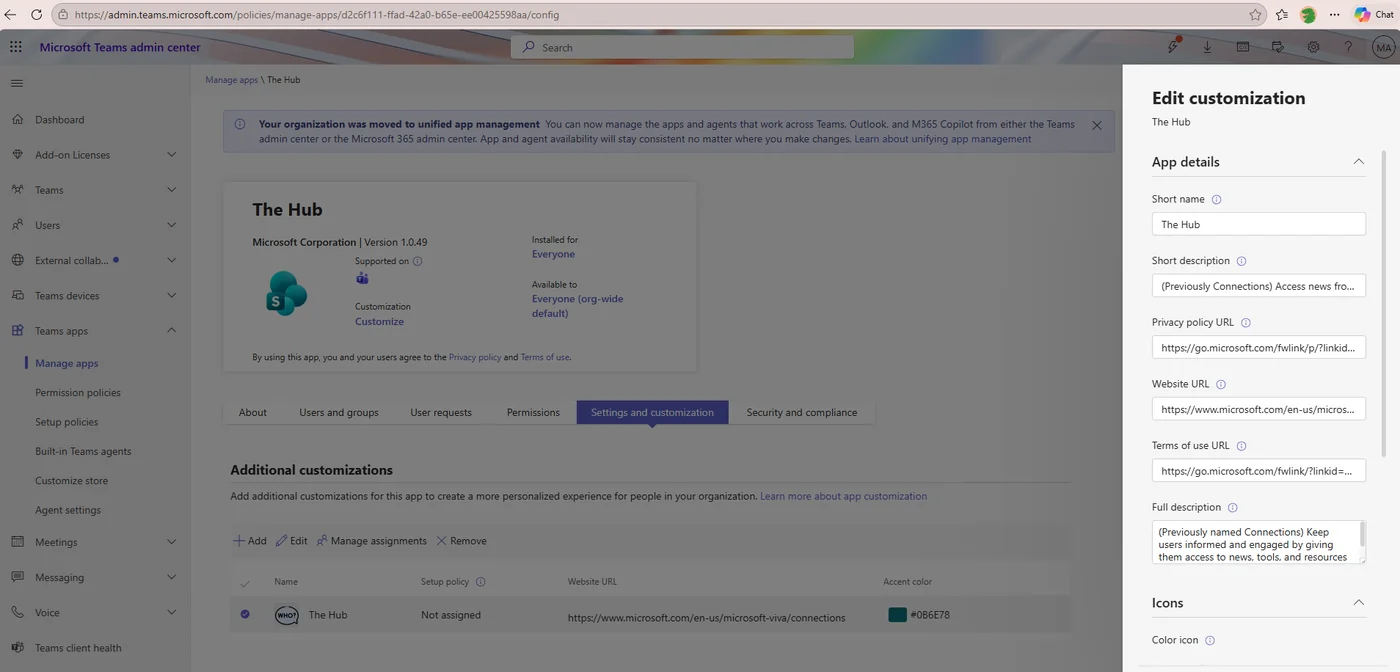
6. Upload the icons and accent colour
Scroll to Icons on the same screen. Two files are needed and they cannot swap places. The colour icon, 192 by 192 pixels, appears in the app store listing, with the logo kept inside the middle 120 by 120 on a flat brand colour. The outline icon, 32 by 32, is the one shown in the left rail, white and transparent only, and a wordmark is unreadable at that size, so use a simple symbol. Uploading the colour logo into the outline slot is the usual reason an app turns up as a blank square in the rail. Set the accent colour, then apply and publish, because nothing changes until you publish.
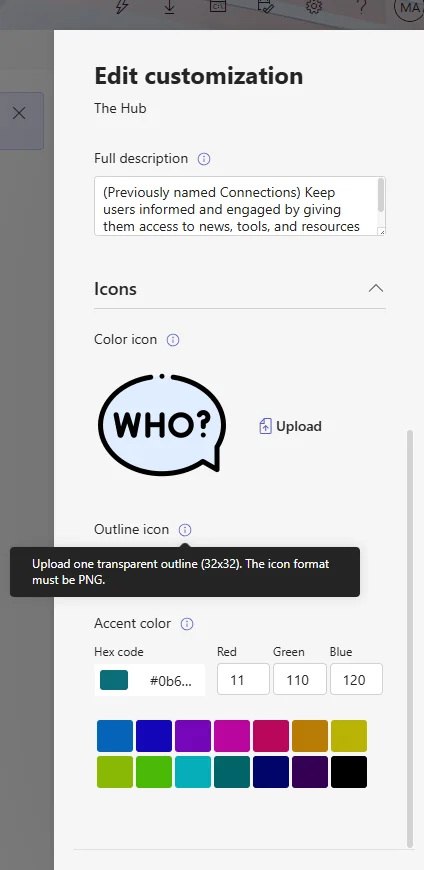
7. Pin it to the left rail
Teams apps, then App setup policies. Allowing made the app findable. Pinning places it in the rail where people will actually see it, so add the app to the pinned list and save. Start with a separate policy assigned to a pilot group, which catches layout and permission problems while the audience is twenty people instead of twenty thousand, and edit the Global policy only once the pilot is clean. On the same page, decide whether User pinning stays on. It lets staff remove the app from their own rail, and that should be a choice rather than a surprise.
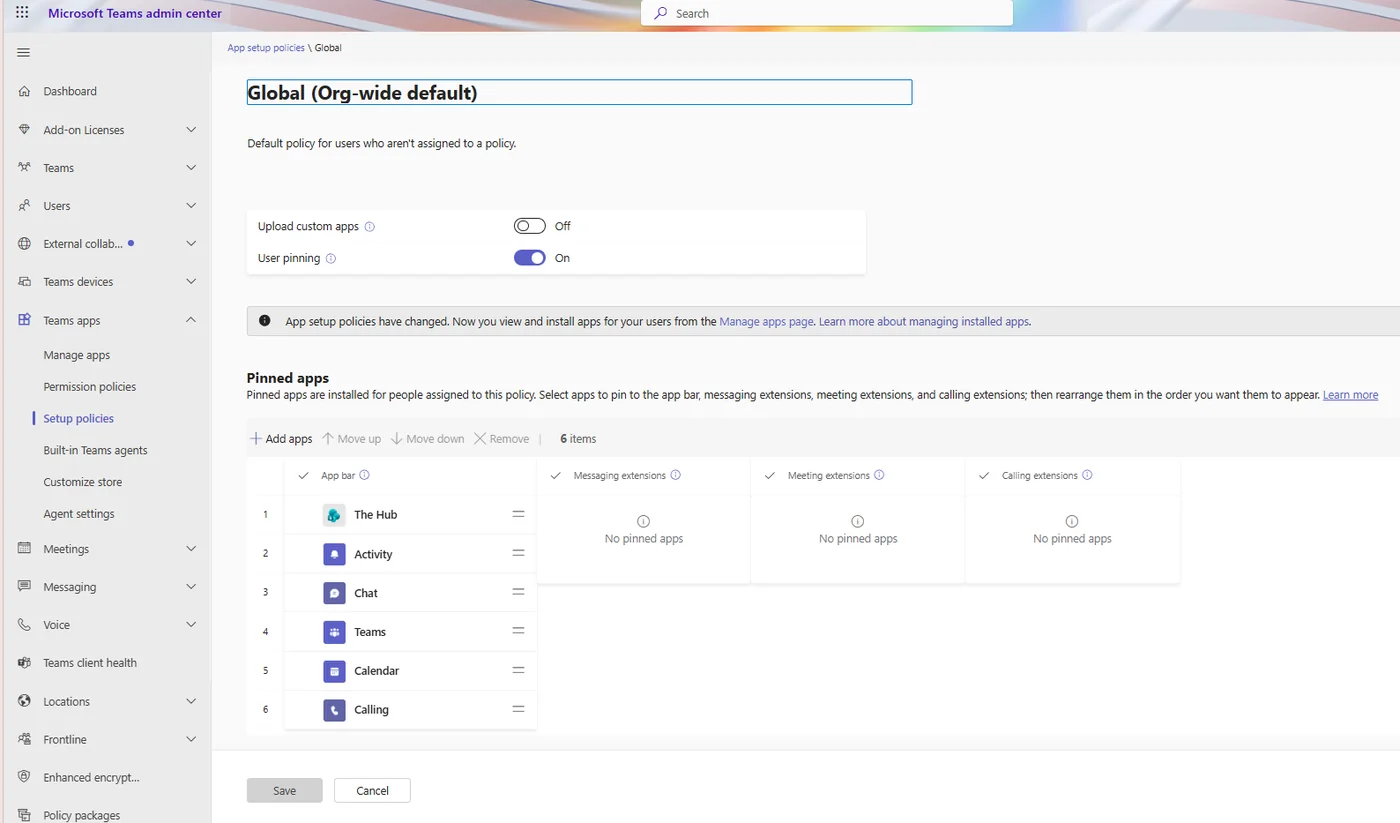
The two waits
Two separate delays follow, and mixing them up creates needless troubleshooting. Published name and icon changes can take up to 24 hours to show. Pins applied through a setup policy can take 24 to 48 hours to reach the rail for those users. Nothing is broken during either window, so schedule the verification pass for two business days after the policy change and spare your service desk the false alarms.
Check it like a user
When the waits have passed, open Teams as a regular user. The app sits in the rail with the right name and icon. Open it and confirm the home page loads, navigation works, news is current and search returns your content. Then repeat on a phone, since the mobile tabs were configured separately and fail separately.
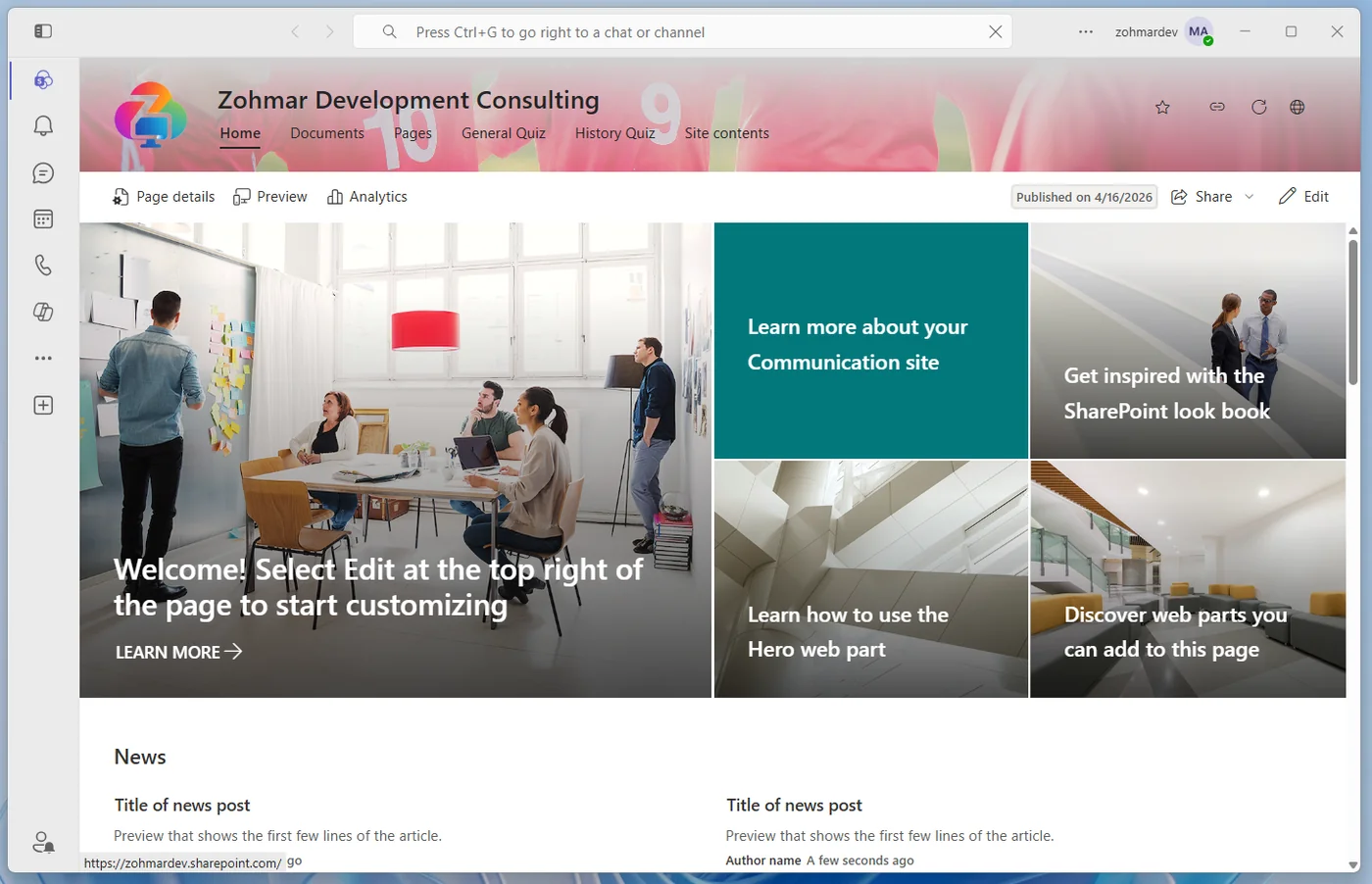
An intranet in the rail also raises quiet governance questions: who owns the home site, who approves branding changes, and whether pilot feedback gates the global pin. Decide those three before the global pin and write the answers down, and the rollout stays boring, which is what a good rollout should be.